
Inbox Placement in Gmail vs. Outlook: Key Differences Cold Emailers Must Know
%201.png)
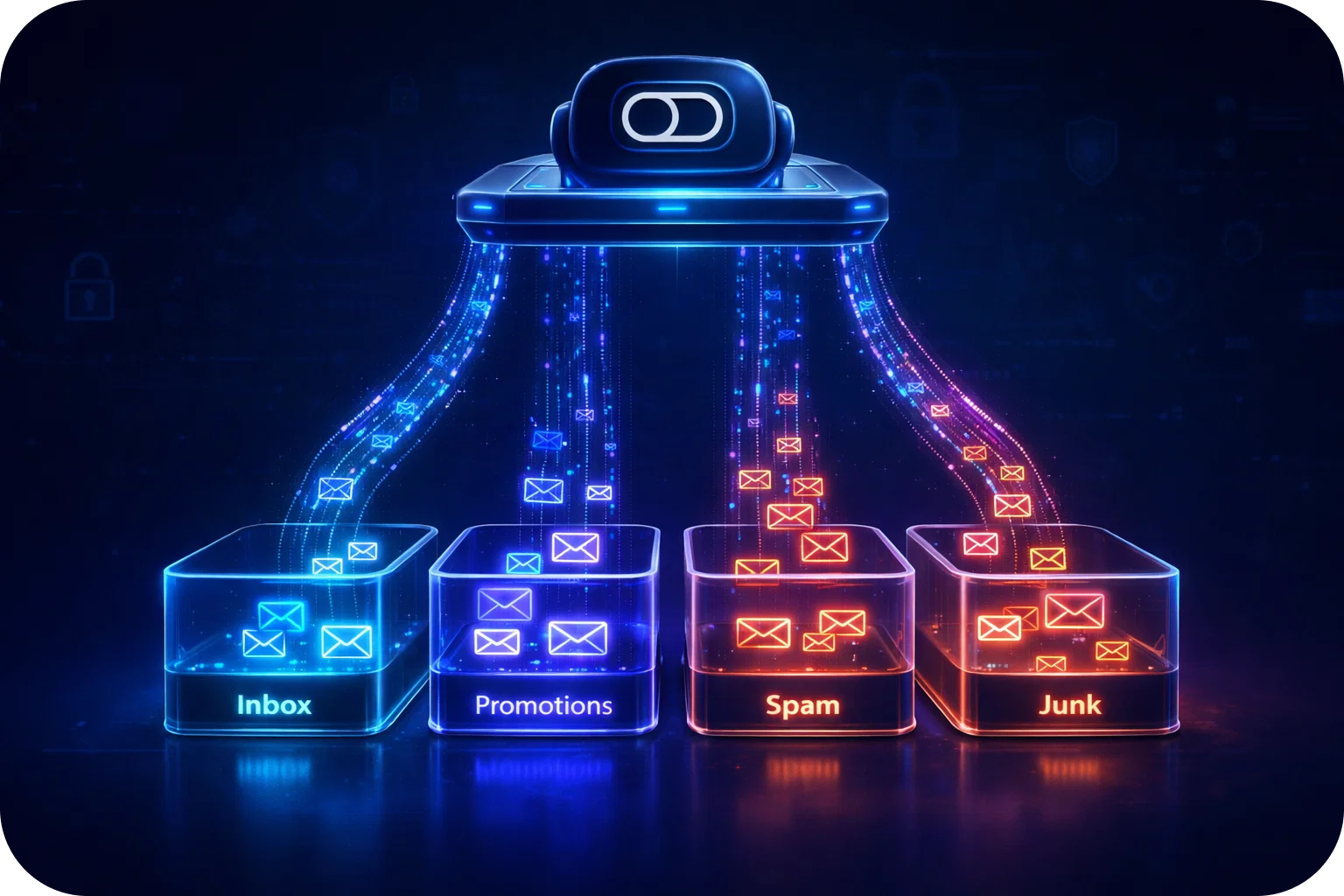
For cold emailers, the difference between success and failure often comes down to a single factor: inbox placement. You can craft the most compelling message, personalize every line, and offer genuine value, but if your email lands in the wrong tab or, worse, in the spam folder, your efforts are wasted. As Gmail and Outlook dominate the business email landscape, understanding how each platform determines inbox placement is essential for startups, sales teams, and growth agencies aiming to maximize deliverability and response rates.
This guide breaks down the mechanics of inbox placement in Gmail and Outlook, highlights their key differences, and provides actionable best practices to help your cold emails reach the right audience. Whether you’re a founder scaling sales or a growth agency running campaigns for clients, mastering these nuances can be the difference between being seen and being ignored.
How Inbox Placement Works: The Basics
Inbox placement refers to where an email lands after it’s sent, primary inbox, promotions, social, spam, or other folders. For cold emailers, landing in the primary inbox is the holy grail. Both Gmail and Outlook use sophisticated algorithms to determine placement, analyzing factors like sender reputation, content, engagement, and technical authentication. Understanding these basics is the first step toward optimizing your cold outreach.
Key Definitions
- Primary Inbox: Where personal and important emails appear.
- Promotions/Social (Gmail): Tabs for marketing, newsletters, and social updates.
- Focused/Other (Outlook): Outlook’s way of sorting priority messages from less critical ones.
- Spam/Junk: Where unwanted or suspicious emails are sent.
Why It Matters
If your cold email lands in the primary inbox, it’s far more likely to be opened and acted upon. Emails in Promotions, Other, or Junk folders are often ignored or deleted. That’s why understanding and optimizing for inbox placement is critical for any cold email strategy.
Gmail Inbox Placement: How It Works
Gmail is famous for its multi-tabbed interface: Primary, Promotions, Social, Updates, and Forums. For cold emailers, the goal is to avoid Promotions and Spam tabs.
Gmail’s Filtering System
Gmail’s algorithms scan:
- Sender reputation (domain/IP history, previous engagement)
- Authentication (SPF, DKIM, DMARC records)
- Content (keywords, links, attachments, formatting)
- Engagement (open rates, replies, deletions, spam reports)
- Sending patterns (volume, frequency, consistency)
Sender Reputation
Gmail closely monitors the reputation of your sending domain and IP address. New domains or those with a history of spam complaints are more likely to be filtered out of the primary inbox. Consistent sending patterns and high engagement build a positive reputation over time.
Authentication
Without proper authentication (SPF, DKIM, DMARC), your emails are at high risk of being marked as spam. Gmail uses these protocols to verify that your message is not forged or spoofed.
Content Analysis
Gmail’s filters are highly sensitive to the content of your emails. Salesy language, excessive links, images, or attachments can trigger the Promotions tab or spam folder. Even the formatting such as heavy HTML can make a difference.
Engagement Metrics
Gmail tracks how recipients interact with your emails. High open and reply rates, low delete rates, and minimal spam complaints signal that your messages are wanted, increasing your chances of landing in the primary inbox.
Sending Patterns
Sudden spikes in volume or sending identical emails to large lists can be a red flag. Gmail favors gradual, consistent sending, especially for new domains or inboxes.
What Triggers Promotions or Spam in Gmail?
- Marketing language (salesy phrases, excessive links)
- Bulk sends (identical emails to many recipients)
- Missing authentication
- Low engagement (few replies, high delete rates)
- Attachment-heavy emails
Gmail Best Practices
- Warm up new domains and inboxes gradually
- Personalize content to boost replies
- Use plain text or minimal HTML
- Authenticate your sending domain
- Monitor engagement metrics
- Avoid spam trigger words and excessive formatting
Outlook Inbox Placement: How It Works
Outlook (including Microsoft 365) uses the Focused and Other inbox system, plus a Junk folder. The Focused Inbox is where users find their most important emails.
Outlook’s Filtering Logic
Outlook relies on:
- Sender reputation (especially previous interactions)
- Microsoft’s AI-powered filtering
- User actions (marking as important, moving emails)
- Authentication (SPF, DKIM, DMARC)
- Bulk sending patterns
Sender Reputation and User Actions
Outlook places significant weight on a recipient’s previous interactions. If users open, reply to, or move your emails to Focused, future emails are more likely to land there. Unknown senders or those with low engagement risk are being relegated to Other or Junk.
Microsoft’s AI Filtering
Outlook leverages AI to analyze content, sender history, and user behavior. Suspicious links, attachments, or patterns similar to known spam can trigger filtering.
Authentication
Just like Gmail, Outlook requires SPF, DKIM, and DMARC for optimal deliverability. Missing or misconfigured authentication increases your chances of being flagged.
Bulk Sending Patterns
Outlook is wary of bulk sends, especially from new or unknown senders. Consistency and gradual scaling help build trust.
What Triggers Other or Junk in Outlook?
- Unknown senders (no prior engagement)
- Bulk sends
- Suspicious attachments or links
- Low interaction history
- Missing authentication
Outlook Best Practices
- Encourage recipients to add you to their contacts
- Personalize and segment campaigns
- Keep subject lines clear and relevant
- Use consistent sending patterns
- Monitor sender reputation using Microsoft’s tools
Key Differences Between Gmail and Outlook
Filtering Algorithms
- Gmail: Highly sensitive to engagement and content; more granular with tabs.
- Outlook: Relies more on user actions and past interactions; uses Focused/Other rather than tabs.
Sensitivity to Cold Email Patterns
- Gmail: More likely to filter bulk or template,like emails into Promotions or Spam.
- Outlook: Bulk sends may go to Other, but user actions (marking as important) can override filters.
Sender Reputation
- Gmail: Tracks sender domain and IP reputation closely, penalizes new or untrusted senders.
- Outlook: Reputation builds with user engagement and history; unknown senders struggle more.
Tab/Folder Structure
- Gmail: Multiple tabs (Primary, Promotions, Social) allow for finer sorting.
- Outlook: Focused/Other is simpler, but less forgiving for unknown senders.
Handling Bulk and Automated Emails
- Gmail: Bulk, automated, or newsletter-style emails almost always land in Promotions unless highly personalized.
- Outlook: Similar emails might go to Other or Junk, but can be moved to Focused with user intervention.
Practical Tips for Cold Emailers
Optimizing for Gmail
- Personalize every email, avoid templates
- Warm up new inboxes and domains
- Use a reputable sending platform
- Monitor spam rates and engagement
- Ask recipients to reply or move emails to Primary
Optimizing for Outlook
- Build sender reputation with gradual, consistent sending
- Encourage recipients to mark emails as important
- Avoid attachments in first contact
- Use clear, relevant subject lines
- Monitor placement and adjust campaigns accordingly
Mistakes to Avoid
- Sending large, identical batches
- Using spammy language or excessive formatting
- Skipping authentication steps
- Ignoring feedback loops (bounces, spam complaints)
Testing and Monitoring Placement
- Use seed lists to test placement across platforms
- Monitor inbox/junk rates with deliverability tools
- Track engagement and adjust content accordingly
The Role of Deliverability Platforms
- Set up inboxes and domains with proper authentication
- Monitor deliverability and placement metrics
- Warm up new inboxes to build a reputation
- Scale outreach safely across multiple providers
- Integrate with leading outreach tools
Mailpool’s automated setup and advanced deliverability features are designed to help startups and sales teams maximize inbox placement, whether targeting Gmail, Outlook, or both.
Conclusion
Landing in the primary inbox is the foundation of successful cold outreach. By understanding the key differences between Gmail and Outlook, and following best practices for each, you can dramatically improve your deliverability and response rates. Ready to take your cold email results to the next level? Book a demo with Mailpool and discover how our platform can help you master inbox placement across Gmail, Outlook, and beyond.
More articles



Get started now


